WOPET F07 Pro User Manual
← All user manuals · Product support
Patrol Pro manual. This model uses WOpet Life; do not apply the F07 Pet Zero pairing sequence.
Read this web edition in English. Open or download the original PDF for the original document and any additional languages. Check the model, hardware revision and supplied instructions before use.
On this page
- Specifications
- Hardware installation and safety
- App installation and network requirements
- Pairing and reset
- Indicator status
- Manual and timed feeding
- Voice recording
- Feeding records, alarms and settings
- Troubleshooting
- Warranty and support
- Original diagrams and PDF
- Related help
Specifications
| Item | Manual specification |
|---|---|
| Capacity | 6L |
| Schedules | Up to 15 per day |
| Portion stated in manual | 5g; up to 50 portions per meal |
| Dry food size | 2–15mm |
| Power | 5V / 1A; three alkaline D backup batteries |
| App and Wi-Fi | WOpet Life; 2.4GHz only |
Hardware installation and safety
- Insert the Type-C USB power cable at the bottom and route it through the guide. Install three D-type alkaline batteries for short-term backup during an external power outage.
- Open the top cover, take the bowl out of the hopper and fit it to the front of the feeder. Add compatible dry food only. Do not add wet or damp food.
- Battery-only operation disables Wi-Fi and app operations. The recorded feeding call plays only once before dispensing on backup power.
- Turn off and disconnect power before cleaning. Keep hands and fingers away from the dispensing wheel. Inspect food and backup-battery condition regularly.
- Wash the removable hopper and bowl regularly. Keep the electrical base dry and wipe it with a well-wrung damp cloth. Release the rear hopper lock and rotate the distribution cover to access the removable distributor as illustrated.
App installation and network requirements
- Install WOpet Life using the original manual’s QR code or the app store. Register or log in with the correct country or region.
- Use a 2.4GHz Wi-Fi network; this manual does not support 5GHz. Passwords are case-sensitive. Use a compatible WPA / WPA2 network; the Pro manual excludes WPA3 and WEP.
- Pair while external power is connected. Keep the feeder close to the router; a repeater or isolated network can interfere with setup. Check router access rules without weakening security for the whole network.
- Enable Bluetooth and the setup permissions requested by the app. Tap Add Device or +, then select the detected feeder.
Pairing and reset
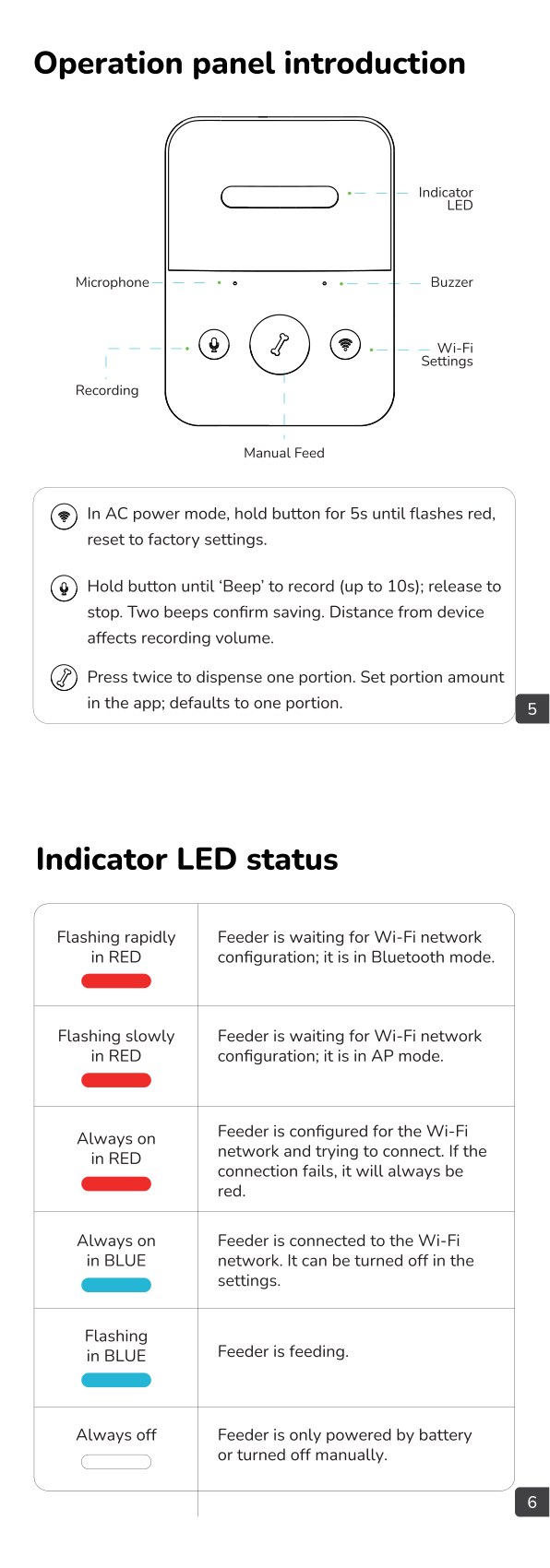
- Check for a rapidly flashing red indicator. If needed, hold Wi-Fi Settings for about 5 seconds with external power connected to enter the documented setup state.
- The phone detects the feeder through Bluetooth. Tap Add and +, enter the 2.4GHz network information, then tap Next. Wait for connection and tap Done.
- If Bluetooth pairing fails, use the AP-mode option described by the app and manual.
- To restore factory settings, connect external power and hold Wi-Fi Settings for 5 seconds until the confirmation sound. Verify schedules and settings after reconfiguration.
Indicator status
- Rapid red flashing: waiting for pairing in Bluetooth mode. Slow red flashing: waiting in AP mode.
- Steady red: configured for Wi-Fi but connecting or unable to connect. Steady blue: connected; the connected-status light can be disabled in settings.
- Flashing blue: dispensing. The dispensing light cannot be disabled.
- An unlit indicator can mean battery-only operation or that the indicator was manually disabled.
Manual and timed feeding
- In the app, open the feeder’s main screen, tap Manual feed, choose the number of portions and confirm with OK.
- Double-click the physical Manual Feed button to dispense. Set its portion amount in the app; setting the button’s feeding portions to 0 disables it.
- To add a scheduled meal, tap +, choose the time, repeat days and portions, then save. The manual supports up to 15 schedules.
- Toggle a schedule off to disable it. Swipe it left to access deletion.
- Confirm the feeder’s time zone matches the intended local feeding time. Check actual food delivery with your kibble before relying on a schedule.
Voice recording
- Hold Record for 3 seconds until the prompt, keep holding while speaking into the microphone, then release. Recording lasts up to 10 seconds; two sounds confirm completion.
- Briefly press Record to preview. Record again to replace the message. Distance from the microphone affects recording level.
- The default playback count is three, with settings up to five. Set Voice times to 0 to disable the call.
- The manual describes different playback behavior on external power and backup batteries. Physical-button feeding does not play the recording.
- If food obstructs the bowl, the manual describes a 10-minute pause with a call once per minute. Do not rely on pets to clear a mechanical jam; inspect the cause and disconnect power before clearing dispensing parts.
Feeding records, alarms and settings
- Feeding records in the app cover the previous seven days. Enable notifications to receive low-food, low-battery or blockage messages.
- Basic settings include battery status, connected indicator light and Reboot feeder.
- Advanced settings include device information and time zone, offline notifications, device sharing, a home-screen shortcut and device removal.
- To share access, register the second account in the same country or region and use Share Device.
- The manual distinguishes removing a device from the app from clearing the feeder’s stored settings. Use the model-specific physical reset when a factory reset is intended.
Troubleshooting
- Cannot connect: recheck external power, 2.4GHz Wi-Fi, password and encryption, then use the alternative pairing mode described above.
- Wrong feeding time: check the feeder’s time zone. The manual instructs removing and adding the device again if the stored time zone is wrong; verify all schedules afterward.
- Recording plays only once: check whether the feeder is on battery backup and whether a voice message has been recorded.
- A bowl-blocked alert can remain after food is eaten because the manual describes a 10-minute observation period. Also check the food slot for a real obstruction.
- An offline app on battery-only power is expected for this model; Wi-Fi and app operations are disabled.
- The Pro manual describes reverse motor motion as a response to a food jam. If the problem persists, stop and inspect the permitted removable components.
Warranty and support
- The PDF lists a standard one-year product warranty and a two-year application through registration within 30 days of receipt, along with 30-day return and replacement information.
- Complimentary parts, replacements and consumables are excluded from the stated two-year coverage. Review the original terms for your purchase and contact support@wopet.com.
- For Amazon purchases: Your Orders → View order details → Seller name → Ask a question.
Regulatory notices
The source manual includes FCC Class B / Part 15 notices. Unauthorized changes or modifications can void authority to operate the equipment. The document notes that interference can still occur in a particular installation.
- If interference occurs, the manual lists reorienting or relocating the receiving antenna, increasing separation from the receiver, using an outlet on a different circuit, or consulting a dealer or radio / TV technician.
- Use the original PDF for the full compliance notice, including any cable and antenna requirements. Specifications and illustrations may change between revisions.
Original diagrams and PDF
Open or download the original F07 Pro manual (PDF)
Related help
F07 Pro product support and related guides · Help Center · All user manuals