
Start with the exact feeder requirements
Check the Wi-Fi band listed in your feeder’s manual. If your router uses the same name for both bands, make sure the app’s pairing steps work with that setup.
What the bands mean at home
In general, 2.4 GHz signals often reach farther and pass through walls more easily, while 5 GHz may offer more capacity at shorter range. Actual performance depends on router location, interference, walls, and competing devices. For a feeder in a kitchen or hallway, a stable signal where the appliance sits matters more than maximum internet speed in the living room. Test the network in the final location with the feeder powered on.
Pair the feeder using documented steps
Follow the app’s setup sequence, including any temporary pairing mode. If setup requires a specific band, connect the phone accordingly and keep the feeder close to the router during pairing if the manual recommends it. Change one setting at a time. If your router lets you create separate network names, use the router maker’s instructions and record the previous configuration so it can be restored if other household devices stop connecting.
Test where the feeder will stay
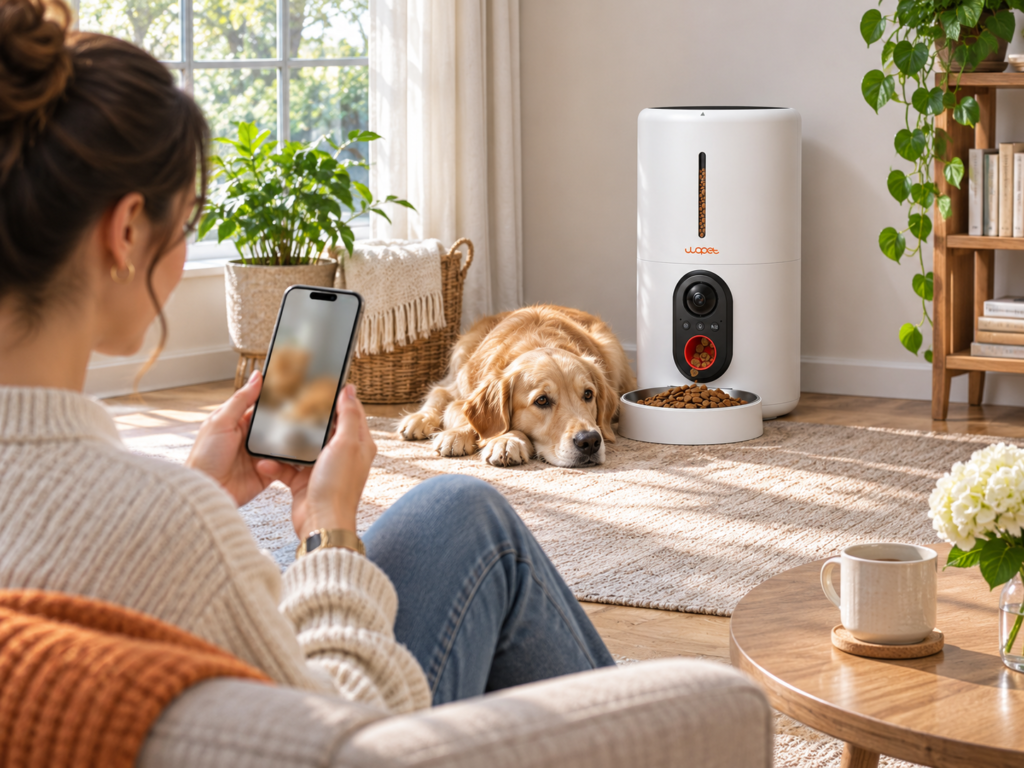
After pairing, move the unit to its planned place and check app status over time. Test the camera or alerts, if included, from the phone you will use. A connection that works next to the router may become unreliable behind a wall or near an appliance. If the signal drops, try a clearer router position or a supported extender before concluding that the feeder is defective. Avoid moving the feeder to an awkward feeding location solely to improve signal.
Understand what Wi-Fi does not guarantee
A connected app may provide settings, status, or remote viewing, but the connection does not guarantee that a meal was eaten. It may also be unavailable during an internet or router outage. Read the manual to understand whether local schedules continue without Wi-Fi and how to verify them. Do not assume every feature behaves identically when disconnected. Keep a manual meal plan available while testing the device.
WOPET setup references
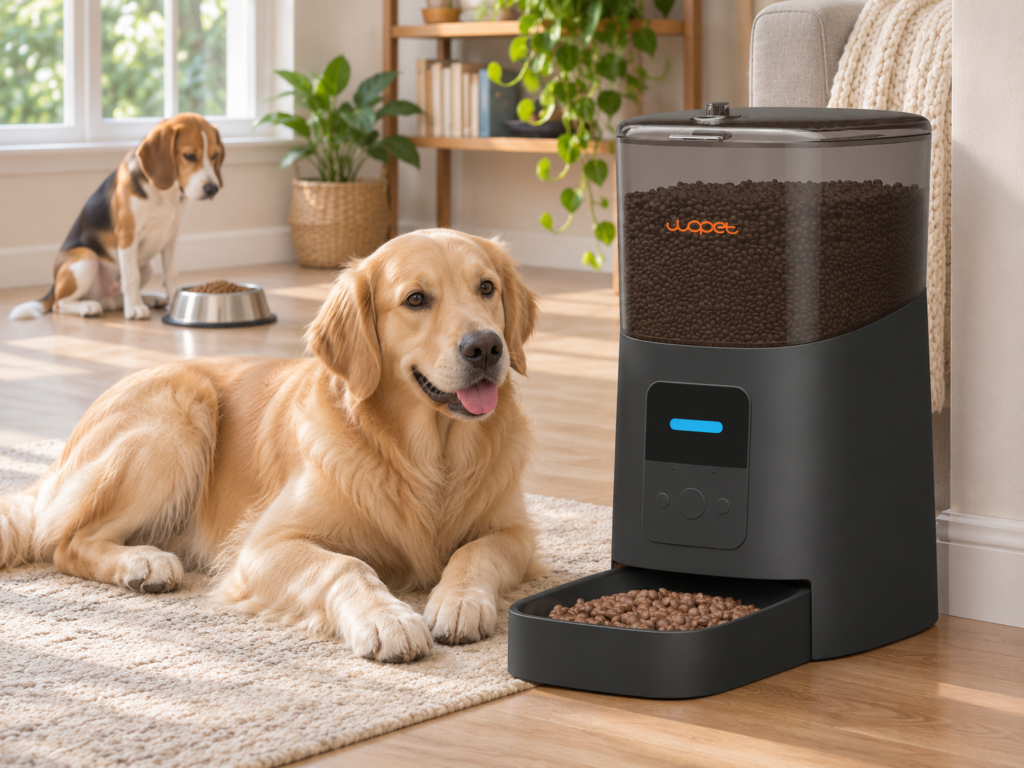
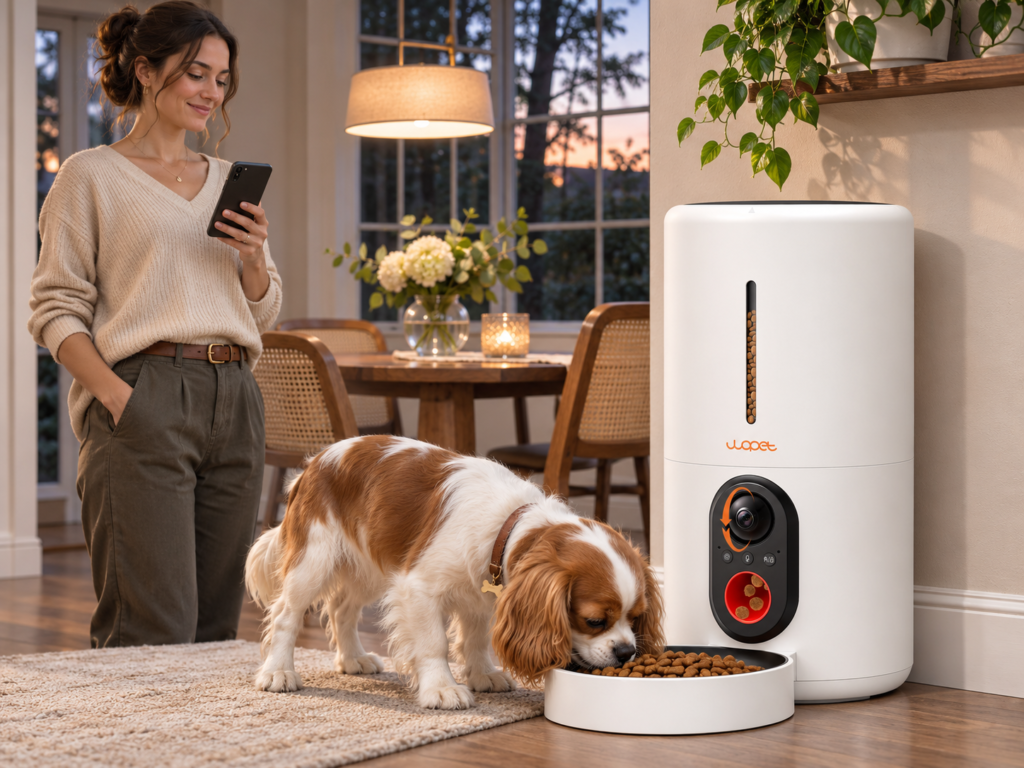
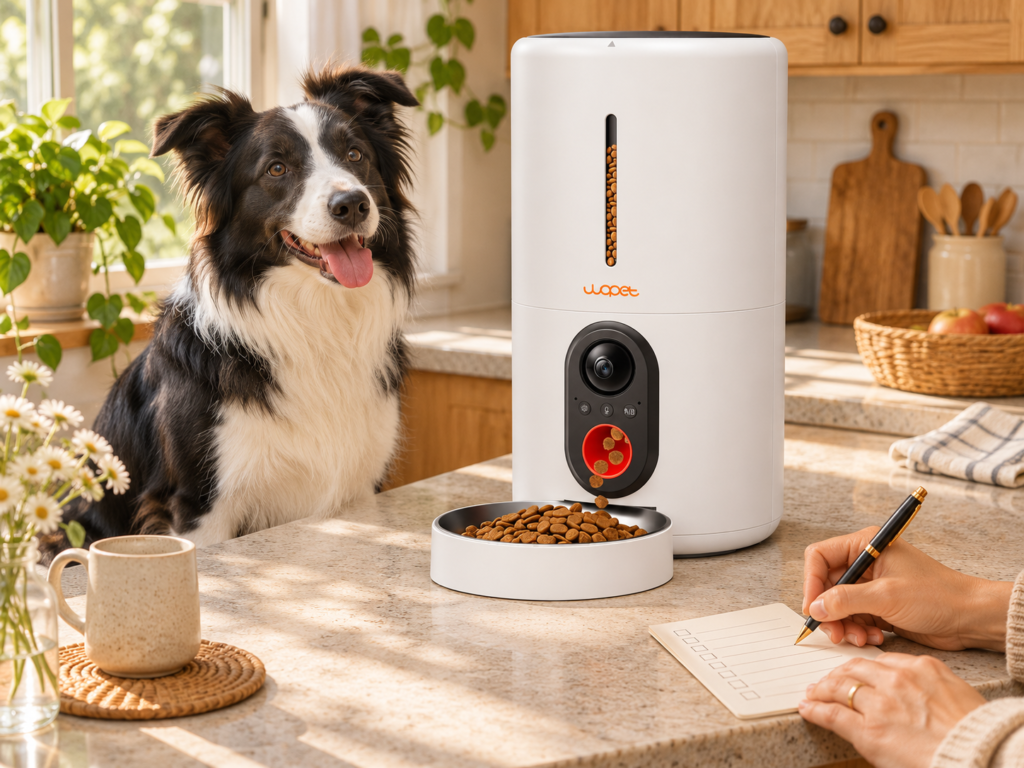
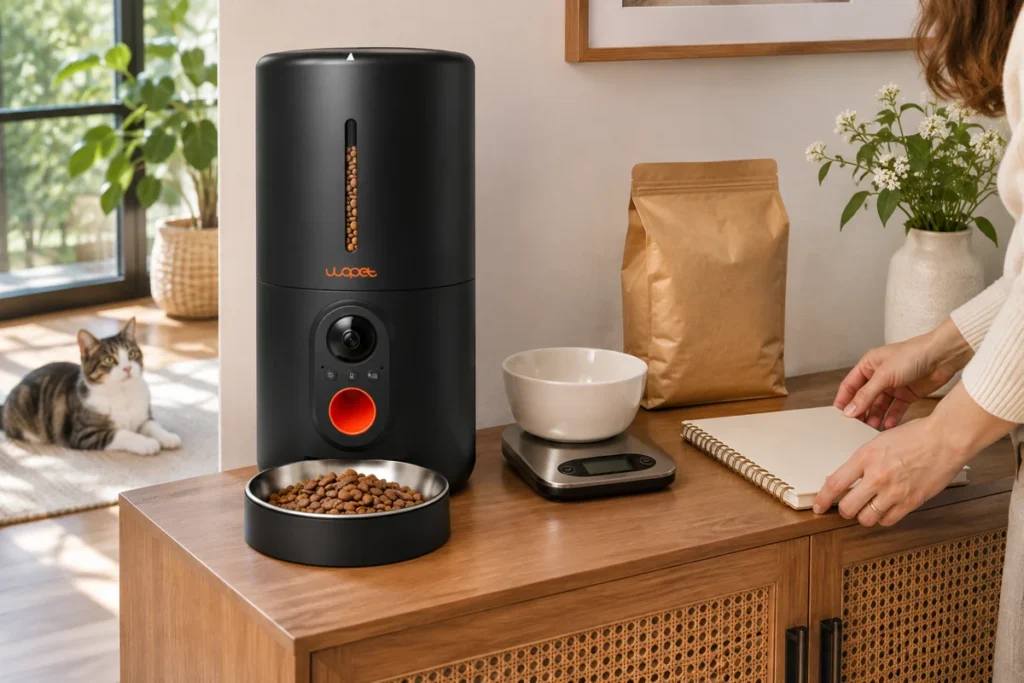
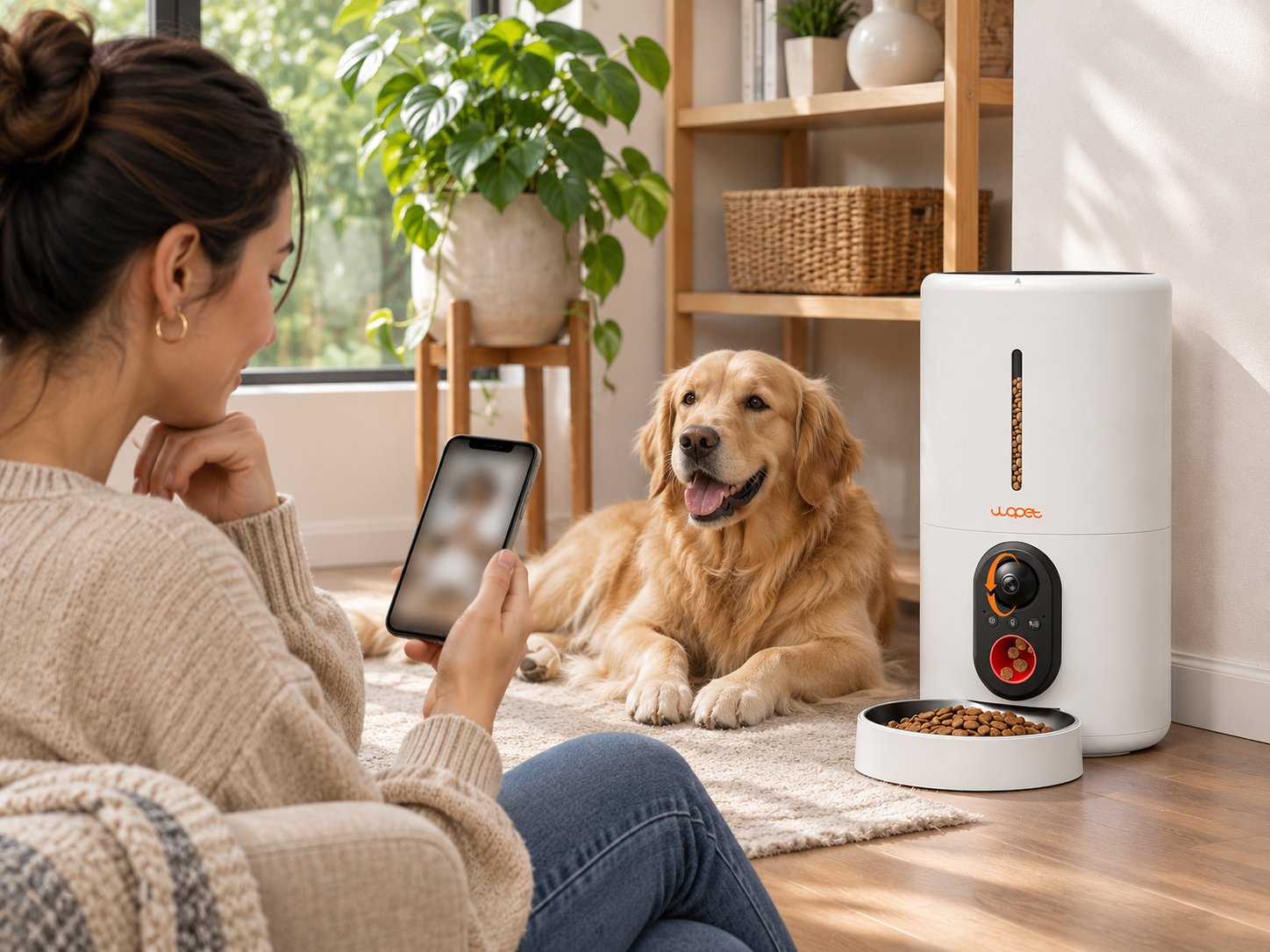
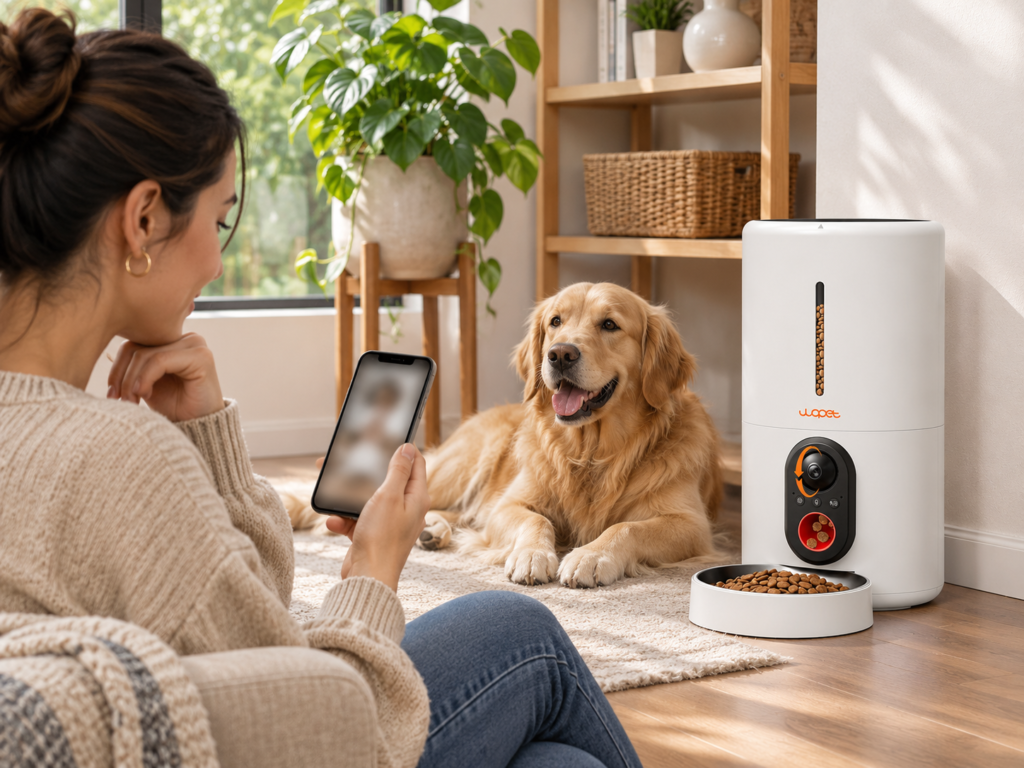
The WOPET HV10P listing names network support; confirm exact requirements and setup instructions in the HV10P manual. WOPET also provides a Wi-Fi troubleshooting guide. If a camera is not needed, compare the F07 Pro feature list as well.
Troubleshoot without disrupting the household network
If pairing fails, confirm the feeder is in setup mode, the app has necessary permissions, and the password is entered correctly. Check for router-level restrictions, guest network isolation, or a recently changed password. Avoid factory resetting until you know whether it erases saved schedules. When in doubt, keep the dog’s meals covered manually and work through official support steps rather than trying random router changes.
Decision checklist before relying on it
Confirm the supported band, pair according to the manual, test at the final location, verify schedule and portion settings, and learn which features work offline. Then watch several meals in person. The core question is whether the feeder stays connected in the chosen place and whether the dog’s routine remains manageable if the network is interrupted. Our automatic dog feeder guide covers the other practical selection checks.
Do not assume mesh or guest networks behave the same
Mesh routers, guest networks, and combined-band network names can handle device pairing differently. A guest network may block devices from communicating with a phone or cloud service. A mesh system may automatically steer a device between access points. Check your router documentation and the feeder’s compatibility notes before making changes. If you have a complex network, router support may be able to explain how to create a compatible network without disabling security.
Keep connection testing simple
Record which network name and band you used, then change only one variable at a time. If you move the feeder, test it again. If you change the router password, update the feeder using its manual. A simple record helps you avoid repeating failed setup attempts and makes it easier to restore a working configuration. Keep the dog’s meals covered while network changes are in progress.
A quick symptom guide
If setup never finds the feeder, confirm pairing mode and app permissions. If it connects but drops later, test signal at the feeder’s location and check for router restarts. If video fails while scheduling still works, troubleshoot the camera connection separately. These symptoms point to different parts of the system; a blanket reset may erase useful settings without addressing the cause.
When to contact support
Contact the feeder maker when the manual’s steps do not match the app, the supported band is unclear, or the device repeatedly disconnects despite a stable signal. Share the exact model, app version, router type, and the step where setup fails. Avoid posting Wi-Fi passwords or private network information in public support forums. A precise description can help support identify compatibility limits faster.
Practical follow-up
Wi-Fi troubleshooting should not change the dog’s ration or mealtimes. Record the existing schedule before changing router or app settings, and continue manual feeding until local operation is confirmed. Once the connection is restored, watch a scheduled event and weigh the food if you changed the feeder settings during troubleshooting.
Wi-Fi setup does not determine how much food to serve. For the feeding plan itself, see the AKC’s general dog-feeding guide and confirm the right amount with your veterinarian.